
If you are launching a new website? Submitting to Google is essential to do so manually.
To submit your website to Google, verify it in Google Search Console, submit your XML sitemap and use URL Inspection to request indexing for your homepage and a few important pages. First, make sure Google can actually access and index your public content.
You don’t need to pay Google to appear in its organic search results. You also don’t have to submit every page individually. Google can discover websites through links, but Search Console gives you a practical way to submit your sitemap and investigate what happens next.
There is one thing I want to make clear from the start: submitting a website does not guarantee indexing, and indexing does not guarantee rankings.
As I approach 20 years in SEO, I still see businesses launch a website and assume the search side will take care of itself. Sometimes it does. Sometimes a password, a forgotten setting or an inaccessible page gets in the way.
I’ve launched two websites with more than 500,000 pages each. Those needed a very different approach from a small business website, but the starting point was the same: make the important content accessible and give search engines a clear path to find it.
Here’s the process I recommend.
Before submitting anything, open your website in a private browser window. Can you access the homepage and key pages without signing in or entering a password?
Ask your developer to confirm that the pages you want in Google:
noindexRemove launch restrictions from public content when the website is approved to go live. Keep private areas protected.
For WordPress, check Settings → Reading → Search engine visibility. The option labelled “Discourage search engines from indexing this site” should be unticked for a public website you want indexed. Your SEO plugin, hosting platform or development configuration may have additional controls, so this setting is only one part of the check.
Blocking a URL in robots.txt is not a reliable way to keep it out of Google. A noindex instruction needs to be accessible to Google so it can be read. If you’re unsure how these settings interact, get your developer or SEO specialist involved.
Go to Google Search Console and sign in with a Google account controlled by your business.
Add your website as a property. You’ll generally choose between:
| Property Type | What It Covers | Verification |
| Domain | The domain across protocols and subdomains | A DNS record through your domain or DNS provide |
| URL prefix | URLs beginning with the exact prefix you enter | Available methods can include an HTML tag, HTML file or other supported options |
For most businesses, I prefer a Domain property because it gives a broader view of the website. If someone else manages your DNS, send them Google’s verification record and ask them to add it without changing your existing records.
Follow the verification instructions shown in your account. Keep the verification record or tag in place afterwards so ownership can continue to be confirmed.
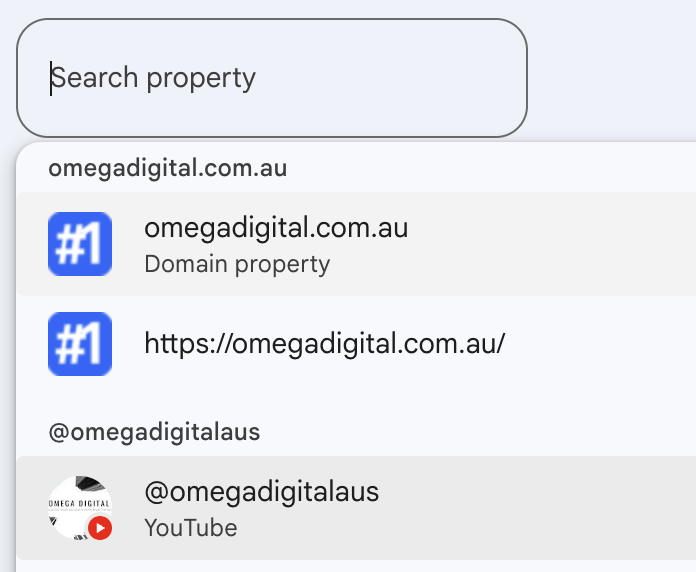
Your business should retain ownership of the account and grant access to its agency or developers as needed.
An XML sitemap lists the URLs you want search engines to discover. It is particularly useful for a brand-new website with few external links.
Your CMS or SEO plugin may already generate one. Common WordPress locations include:
https://example.com/wp-sitemap.xml

https://example.com/sitemap_index.xml
These are examples, not a guarantee of where yours is located. Check your website or ask your developer for the correct sitemap URL.
Open the sitemap in your browser. It should load successfully and contain your live website URLs. A sitemap index can link to several smaller sitemaps; you can submit the index rather than each child sitemap separately.
In Search Console: https://search.google.com/search-console/sitemaps

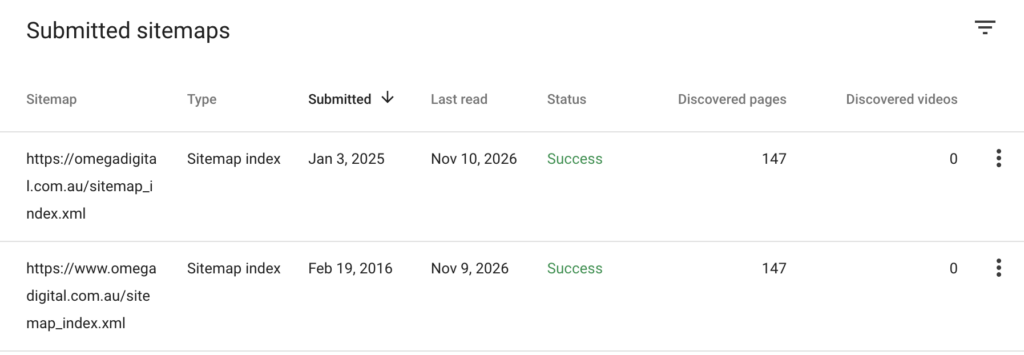
Include the preferred, indexable versions of your pages. Avoid filling the sitemap with broken URLs, redirects, staging pages or content deliberately excluded from search.
A successful sitemap submission means the sitemap has been processed successfully. It does not mean every listed page has been indexed.
For a small number of important URLs, use Search Console’s URL Inspection tool.
Start with your homepage, main service or product category pages and a few useful articles or guides. Submit the final URLs you want indexed, rather than redirected alternatives.
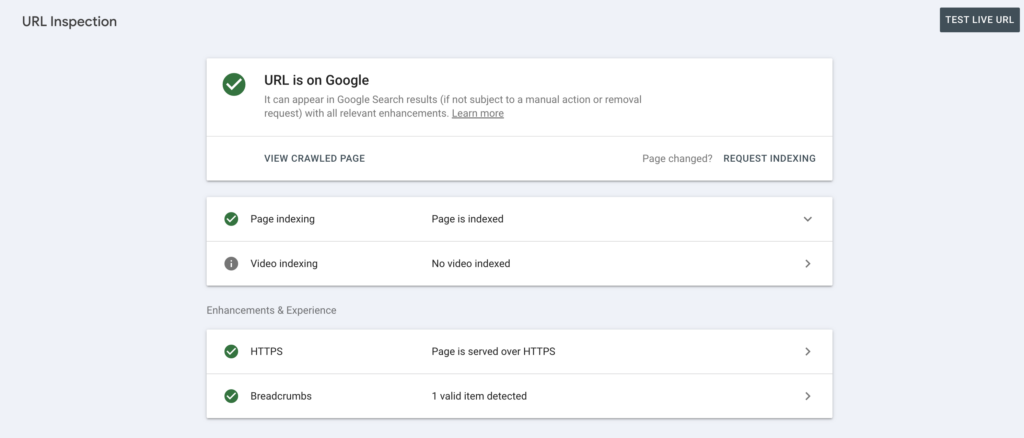
You need suitable Search Console permissions to request indexing. Google also applies submission limits, and repeatedly submitting the same URL will not make it get crawled faster.
A successful live test confirms certain technical conditions at the time of testing. Google still decides whether to index the page.
If you serve customers in person, Google Business Profile should be part of your launch checklist.
It is separate from submitting your website to Google Search. A Business Profile can help customers find an eligible business through Google Search and Maps; it does not replace Search Console or guarantee website indexing.
Businesses generally need to receive customers at a genuine eligible location or travel to customers to provide services. An entirely online business without in-person customer contact is generally not eligible.
If you qualify:
For a service-area business that does not receive customers at its address, follow Google’s rules for hiding the address and specifying the service area. Don’t use a virtual office or another address simply to create a separate presence for a brand.
Submitting a sitemap is a useful step, but your website also needs to be connected to the wider web.
Create relevant company and social profiles, link to your website and keep your business details accurate. Choose industry directories that customers actually use. Make your contact information easy to find on the website too.
After launch, look for genuine opportunities to contribute expert commentary, share original research or tell a story that a relevant publication would want to cover. Earned media coverage and links can introduce people to your business and create additional routes to your content.
My recommendation is to build a recognisable business with something useful to say. A pile of low-quality directory submissions is a poor substitute for that work.
Check the Page indexing report and inspect individual URLs when you need more detail.
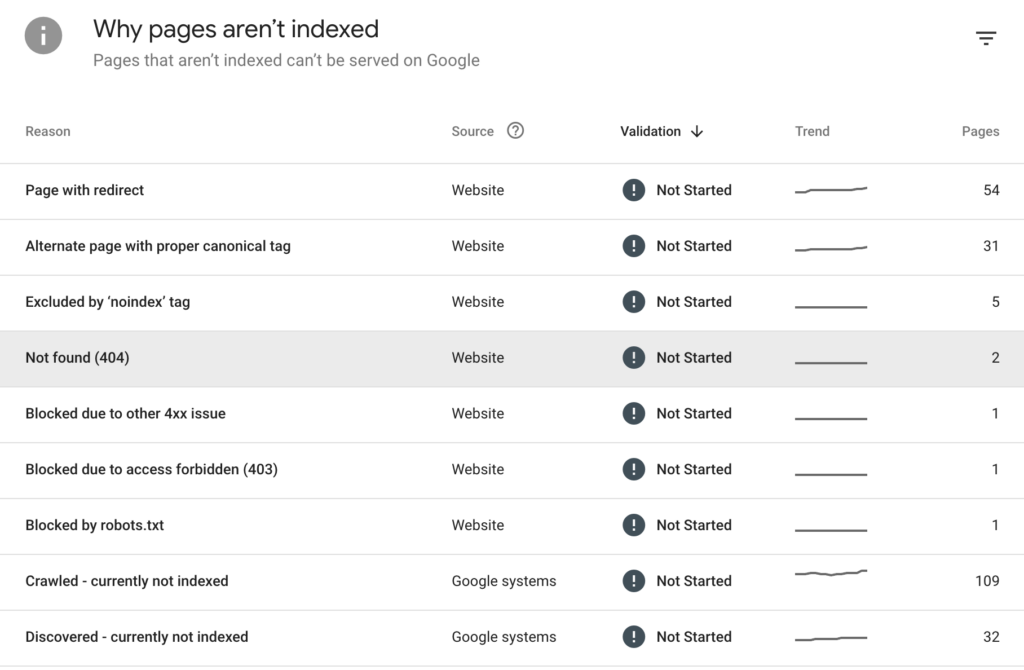
Some exclusions are expected. You don’t need every filter URL, duplicate page or private area in Google. Focus on whether your important public pages are being indexed as intended.
If a priority page is missing, investigate its accessibility, indexing instructions, canonical, internal links and content. A status such as “Crawled – currently not indexed” needs investigation; it isn’t automatically solved by pressing Request indexing again.
Once search data becomes available, use Search Console’s performance reporting to see which queries and pages receive impressions and clicks.
Add Bing Webmaster Tools to your launch checklist too. Verify your website and submit its sitemap there as well.
Separately, confirm that Google Analytics 4 is collecting the data you need and recording meaningful actions such as enquiries, purchases or booking completions. Google Tag Manager can help manage tracking, depending on your setup.
Analytics measures what visitors do after arriving. It isn’t a requirement for Google indexing, and installing it doesn’t submit your website to search engines.
There is no guaranteed timeframe. Google advises that crawling can take days to weeks, and a crawl does not guarantee indexing. Use Search Console to monitor your priority pages rather than relying on a promised deadline.
No. Google Search Console and inclusion in Google’s organic search results are free. Professional SEO services involve separate fees for the work carried out; you are not paying Google for organic inclusion.
No. Submit a sitemap for discovery across your website and make sure important pages have internal links. Use URL Inspection for a small number of priority pages or to investigate specific issues.
No. A sitemap helps Google discover URLs. Rankings depend on much more than submission, and even technically eligible pages are not guaranteed indexing.
The first job is to give Google access to your important content, submit the correct sitemap and check the results. From there, keep improving your website, answering customer questions and building awareness of your business.
Submitting your website is a starting point. The ongoing work is what gives customers a reason to choose you.
If you need help checking a new website or investigating pages that aren’t being indexed, get in touch with Omega Digital. You can also explore our SEO case studies to see examples of our work.