If someone asks ChatGPT to recommend a business like yours, how do you know whether your brand was mentioned or whether anyone clicked through to your website?
ChatGPT Business Hub gives eligible businesses access to insights such as brand mentions and website clicks. If you already use Google Search Console, the idea will feel familiar. You get performance data directly from the platform, giving you a starting point for measuring how your business appears in ChatGPT. OpenAI’s Business Hub guide
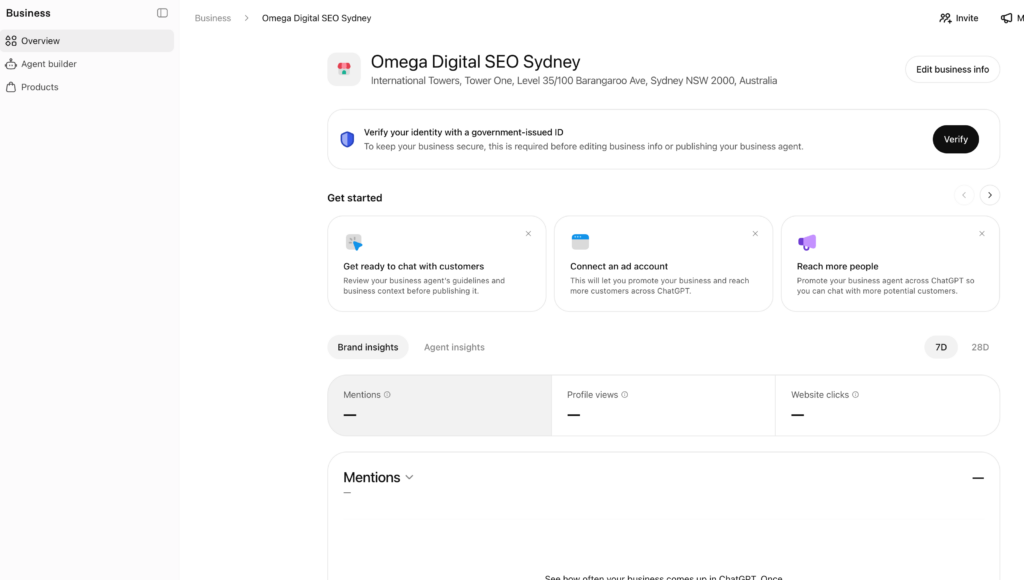
We went through the process for Omega Digital. There are two stages to complete before you can see your insights. First, you claim the business. Then, an owner or authorised representative verifies their identity through Persona.
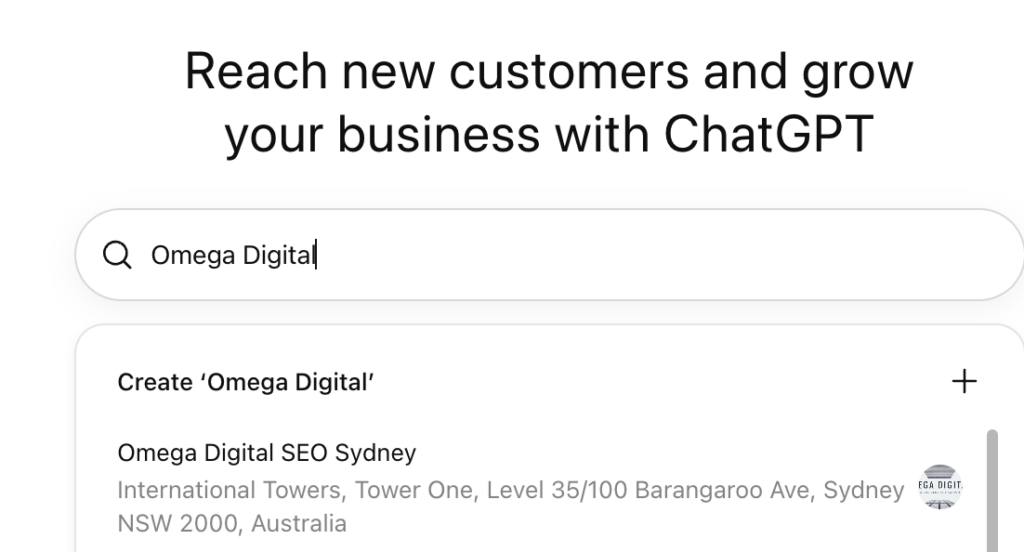
Open ChatGPT Business Hub using a ChatGPT account your business controls. Click Add business, search for your business name and select the listing that matches your main business address. Click Get started, then Continue.
If your business doesn’t appear, look for an option to add it. Availability depends on your location and business type. OpenAI currently says some eligible online businesses can add a profile, while local shops and restaurants can only claim an existing US listing. OpenAI’s eligibility guidance
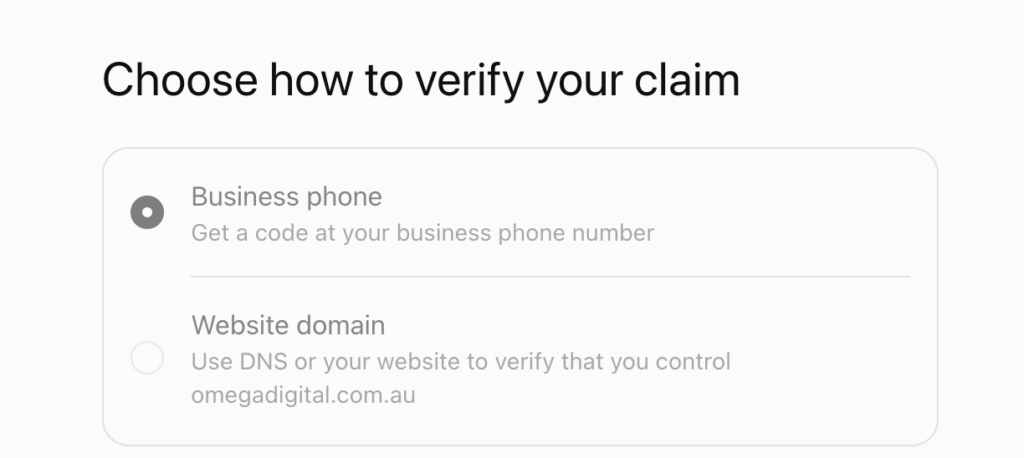
Business Hub will show the verification methods available for your listing. The two options we saw were Business phone and Website domain.
| Verification method | What to do |
|---|---|
| Business phone | Make sure you can access the listed phone number and follow the prompts to receive a code. We received ours via WhatsApp. Your listing may offer SMS or an automated call. |
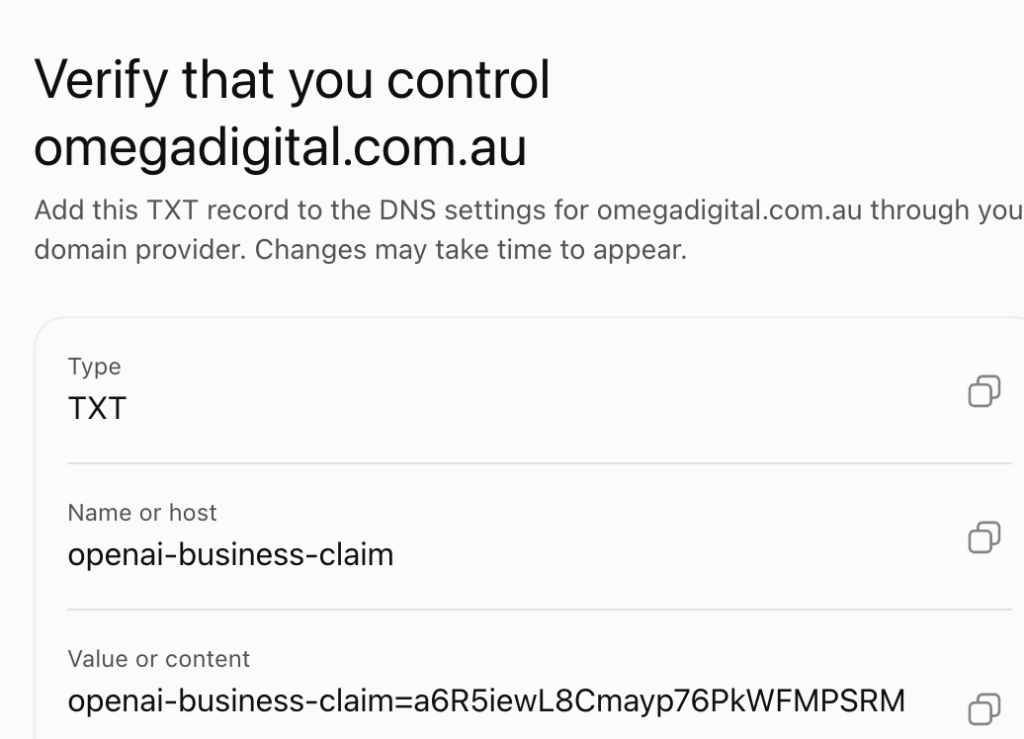
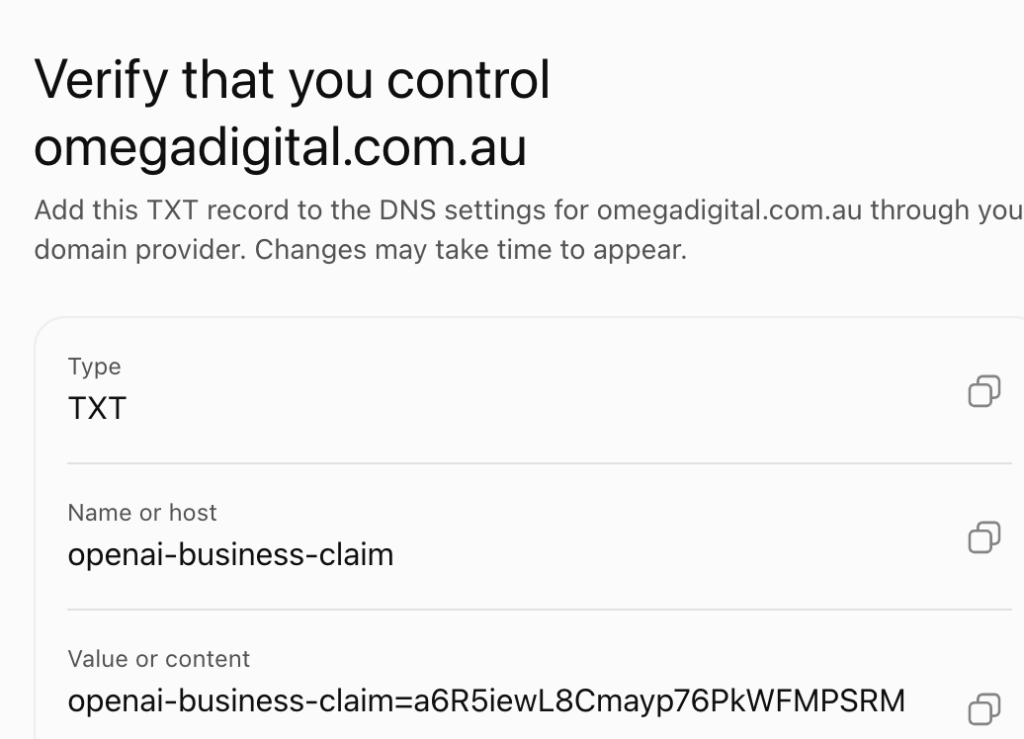
| Website domain | Add the TXT record shown in ChatGPT to your domain’s DNS settings. If your developer manages DNS, send them the exact record details and the expiry time. Then return to Business Hub and select Verify domain. |
Our TXT record was valid for 24 hours. Check the expiry shown in your own dashboard, especially if you’re handing this step to your developer.
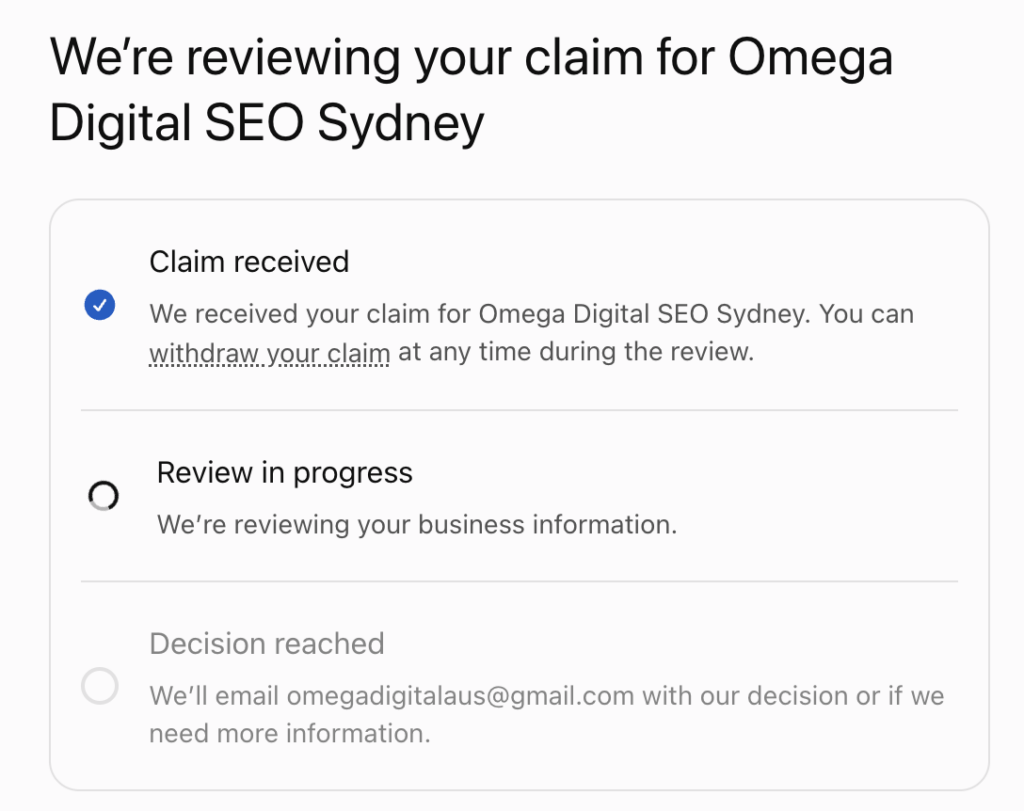
Once you submit the claim, you may see Review in progress. You can leave the dashboard and return later. OpenAI will email you with its decision or ask for more information. OpenAI’s claim verification instructions
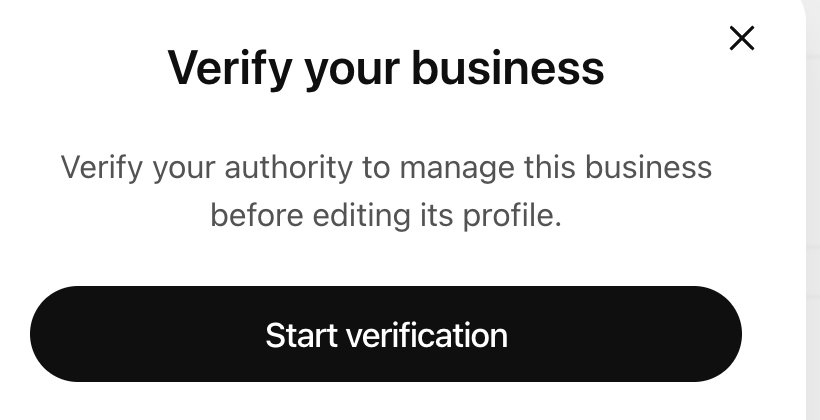
Once your claim is approved, open your business profile and look for Complete verification with Persona. Click Verify and follow the prompts.
If you’re the owner or authorised representative and you’re using an Australian ID, select Australia as the issuing country. A current Australian driver licence or Australian passport are both options. Have your legal business name and registration details, such as your ABN, handy in case you’re asked for them. OpenAI’s Persona instructions · Australian ID options shown in Business Hub
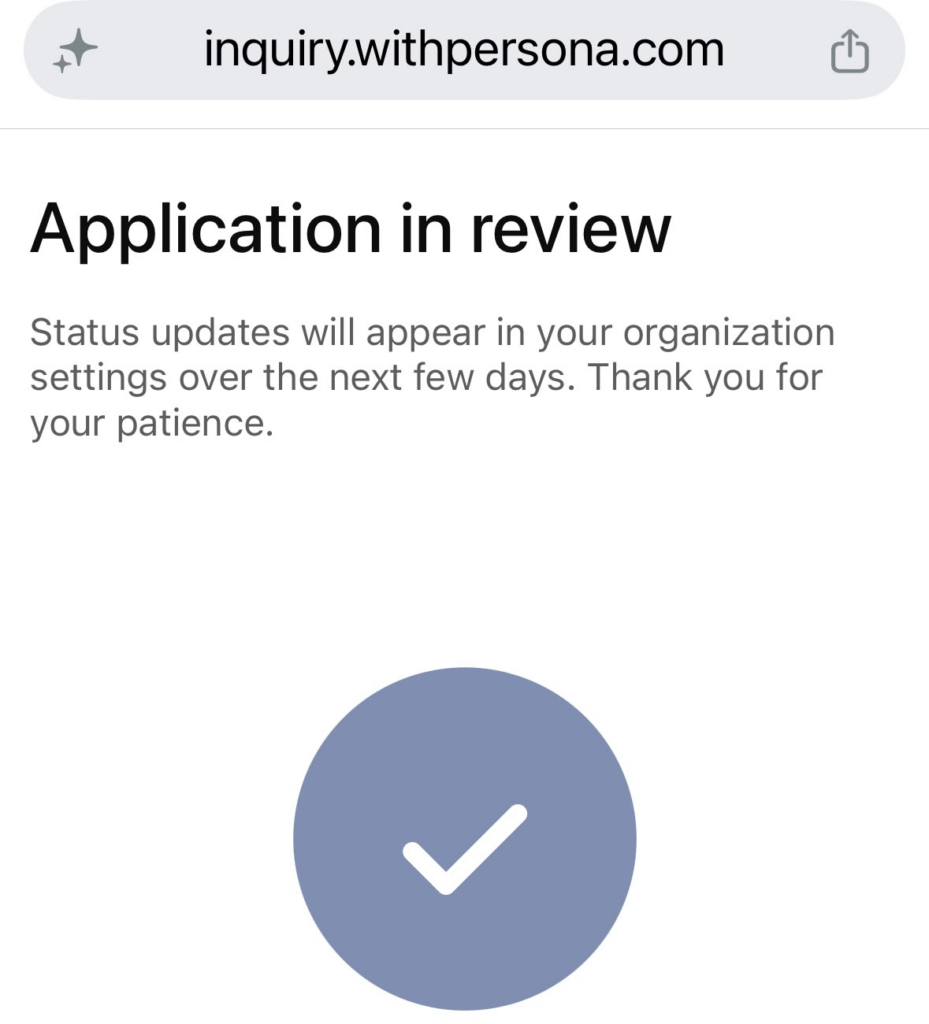
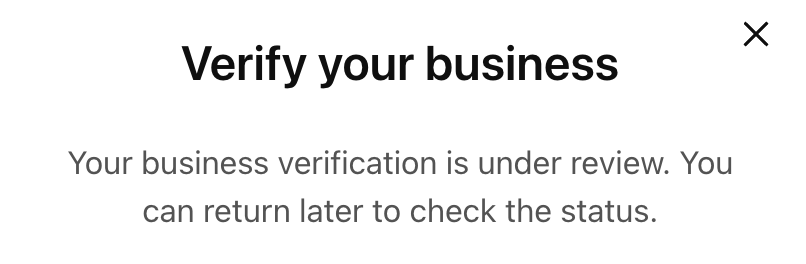
If your verification is under review, you can return to Business Hub later to check the status.
“Your business verification is under review. You can return later to check the status.”
You Can click verify to check the current status
Once Persona verification is approved, open Insights and give the data time to populate. Start by tracking brand mentions and website clicks. Mentions tell you how often your brand appears. Clicks show how often that visibility sends someone to your website. OpenAI’s Business Hub guide
I’d read those figures alongside your Google Search Console and GA4 data. That gives you a way to track ChatGPT visibility alongside Google Search performance and see what visitors do once they reach your site.
Keep the profile under an account your business controls. If you’re an Omega Digital client, click Invite in the top-right corner and add omegadigitalaus@gmail.com so we can include the data in your reporting. If you already run ChatGPT Ads and see an option to connect your ad account, let us know so we can review that data with you too.